
Step 1: Choose and Preview a Font
Pick a font you like from DafontStyle. We gives you a preview option. Just type your text into the text editor, test how it looks in that font, and even change the color to see different styles.
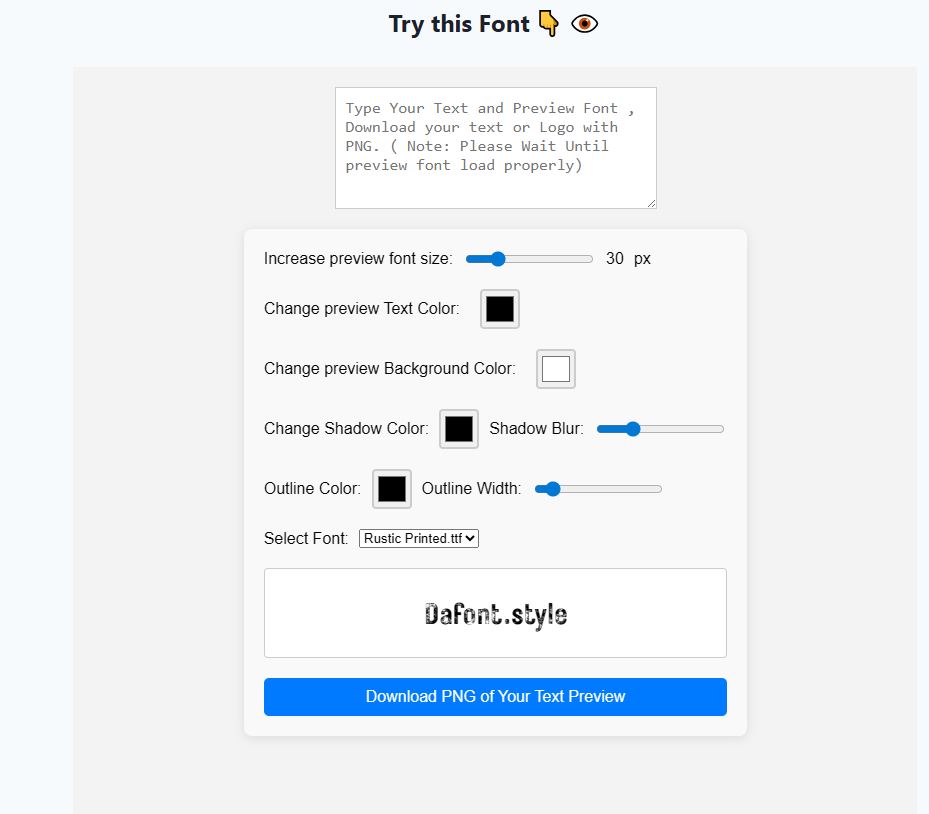
Step 2: Download the Font
Once you’ve previewed and found the font you like, click the Download Fonts button. The font will be downloaded as a ZIP file.

———————————————-
Installing Fonts on PC
- Extract the ZIP file.
- look for a .ttf or .otf file.
- Double-click the file.
- Click the Install button.
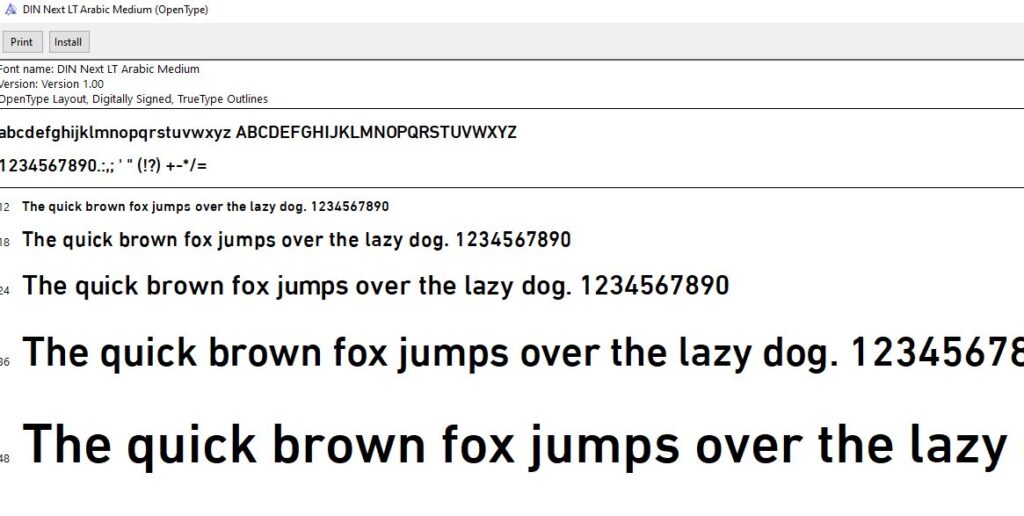
Your font will now be installed and ready to use in apps like Word, Photoshop, or Illustrator.
———————————————–
Installing Fonts on Mac
- Double-click the downloaded ZIP file to unzip it.
- open .ttf or .otf file.
- Double-click the font file to open Font Book.
- Click Install Font (bottom right corner).
The font will now appear in your applications.
————————————-
Installing Fonts on Mobile Devices
- iOS: Use apps like iFont or AnyFont to import and install fonts.
- Android: Use a file manager to unzip the file, then copy the font into the Fonts folder or install it through a supported app.
If you still face any issues, you can always reach out to the our support team for assistance.